
Roles and permissions help admins control user access, protect data, and keep workflows organized inside ATZ CRM.
Quick Answer
Go to Admin Settings > Roles and Permissions, create or review a role, configure access levels, save the role, and assign it to users from the Users section.
Roles and Permissions and Teams are not available on Pro accounts.
Why Roles and Permissions Matter
Use roles to control who can:
- View records.
- Create records.
- Edit records.
- Delete records.
- Change ownership.
- Access files.
- Use reports.
- Manage admin settings.
- Perform bulk actions.
Open Roles and Permissions
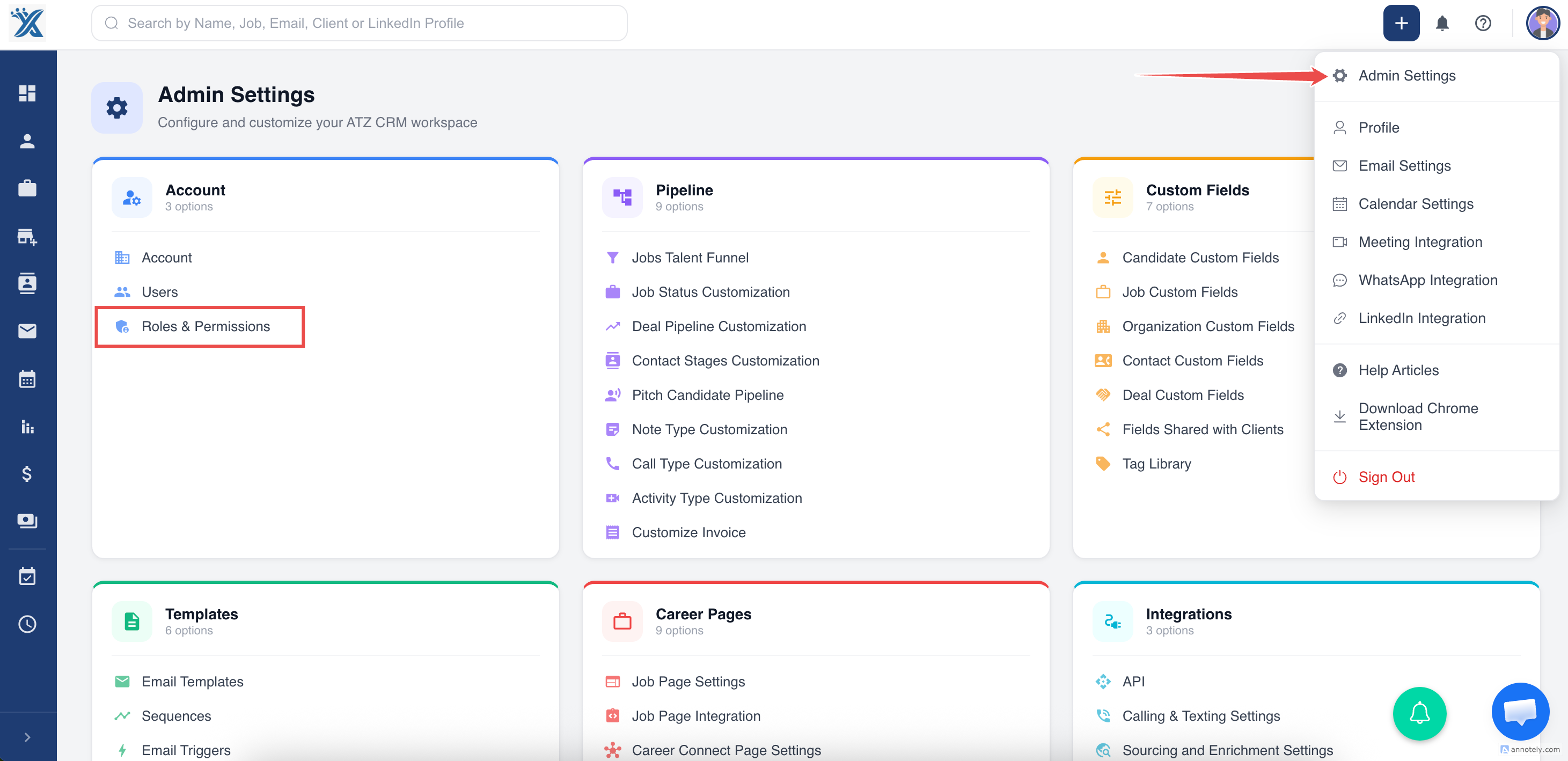
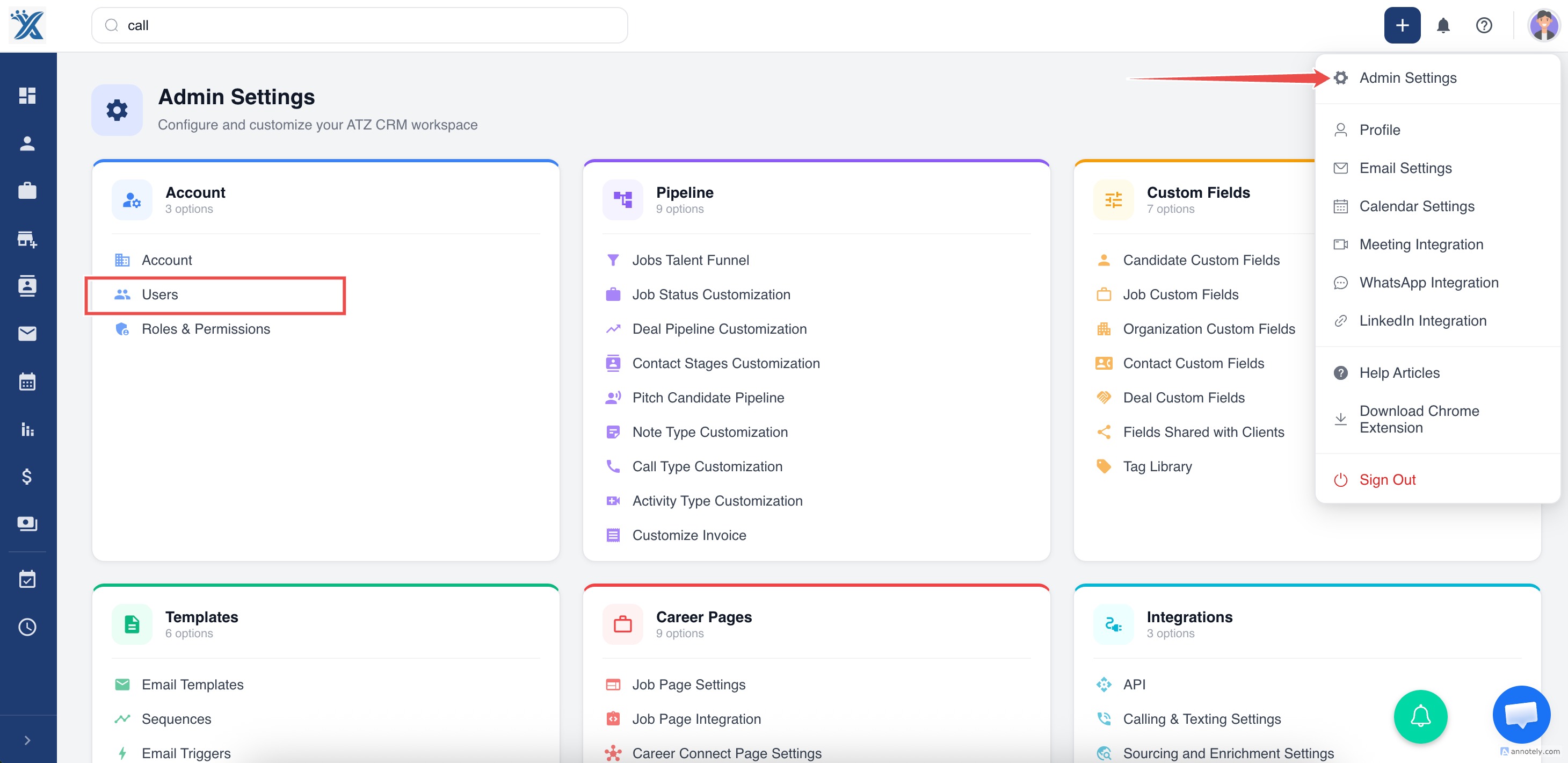
In ATZ CRM, open Admin Settings and select Roles and Permissions.
Create a New Role
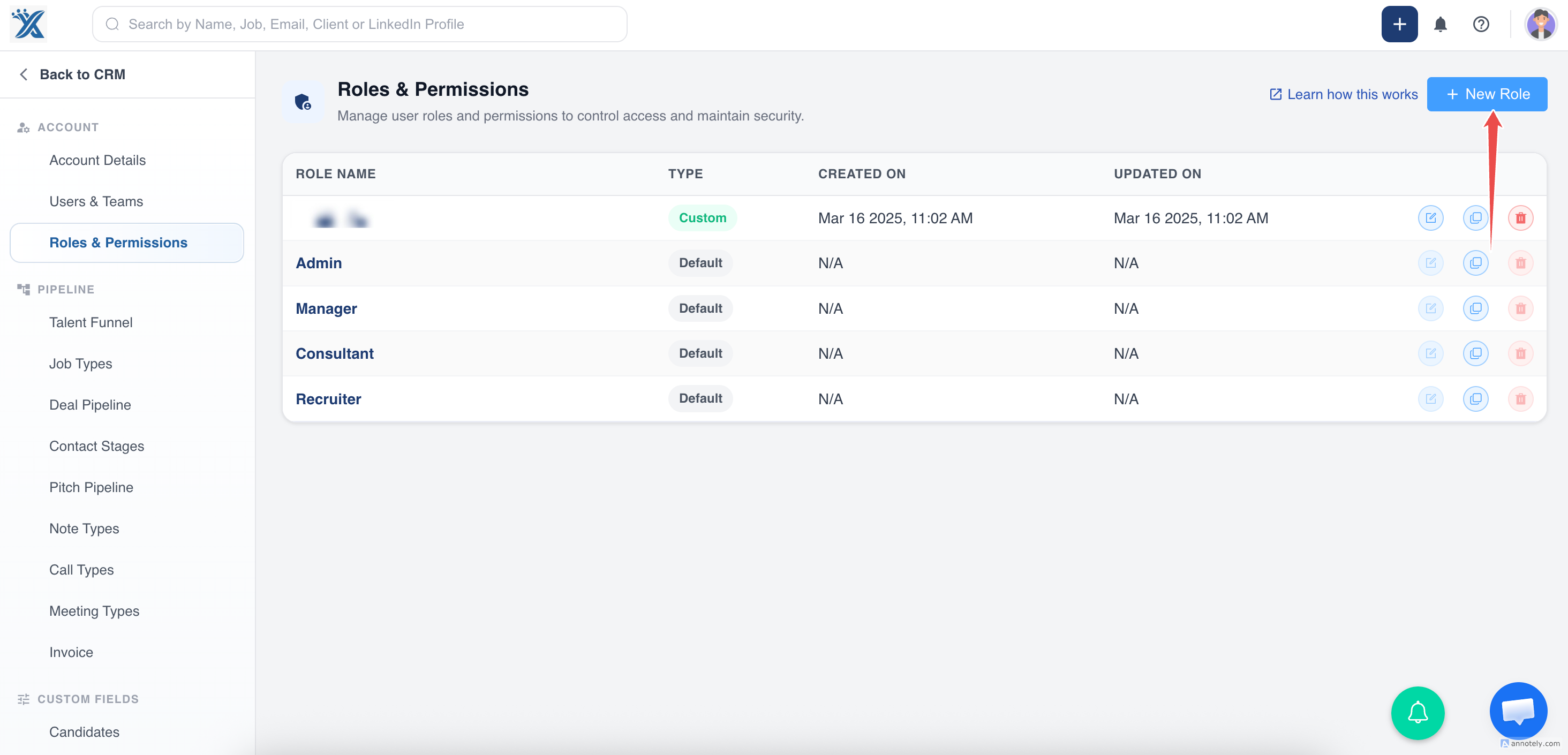
Click New Role to create a custom role.
Enter a role name, such as Custom Role, then configure permissions.
Configure Access Levels
For each permission area, choose access levels for actions such as view, edit, delete, create, ownership changes, and file access.
The main access levels are:
Everything
The user can perform the selected action across eligible records in the current account. This does not grant access to another account.
Team
For a supported Team-scoped action, the user can access eligible records through shared active teams. If they belong to multiple teams, the permitted records can come through any of those teams; this does not become account-wide access.
Manage membership in Admin Settings > Teams. There is no separate team-manager field. Removing a member or archiving a team affects live access immediately.
View, edit, and delete remain separate actions. For example, Team viewing with Owned editing lets a recruiter read eligible teammate records without editing every one of them.
See Understand Team-only Permissions for examples.
Owned
The user can access only records created by them, assigned to them, or owned by them depending on the permission.
None
The user has no access to that feature or action.
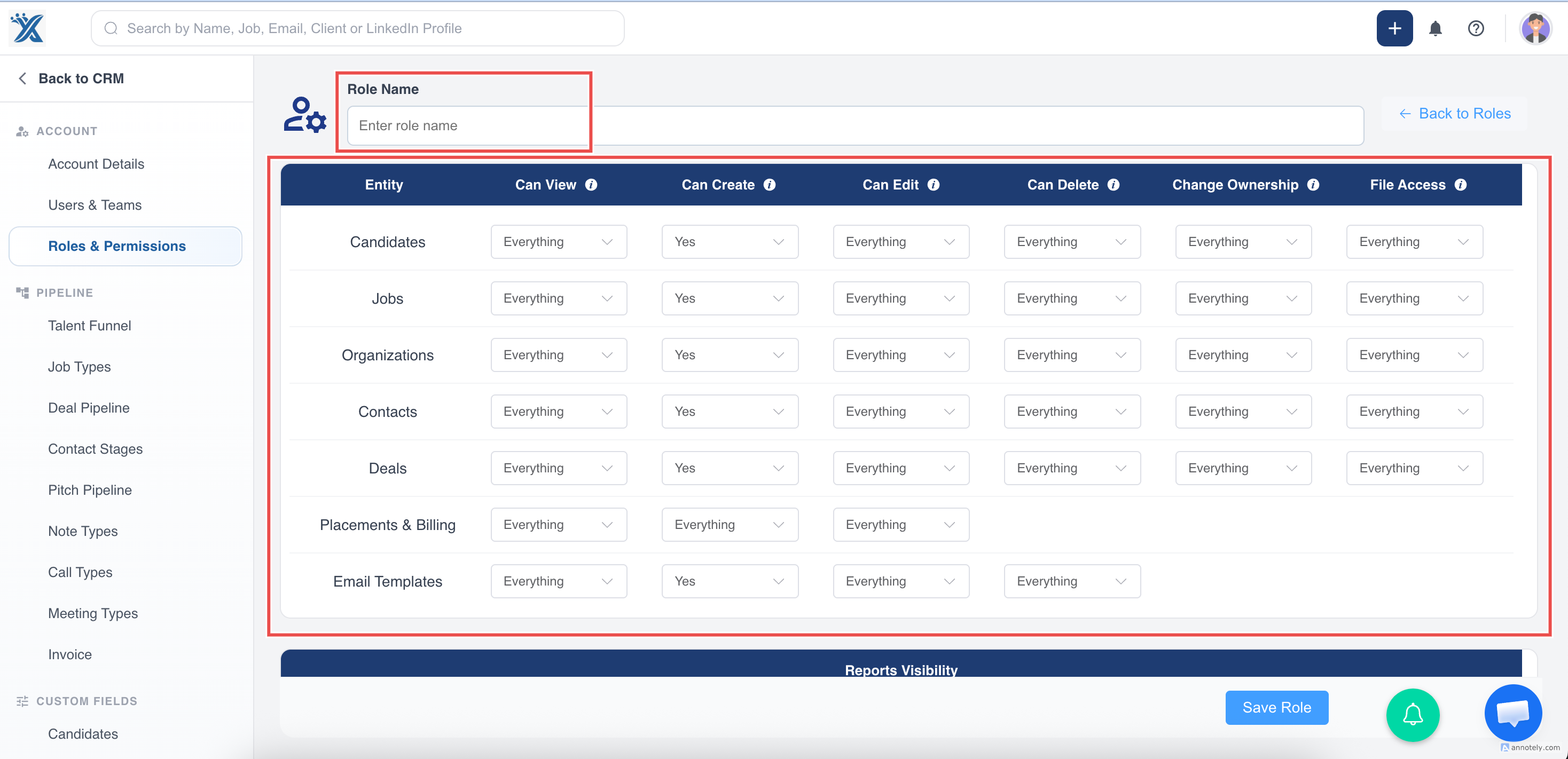
Choose access based on the user’s responsibilities and the level of data visibility they need.
Report and Admin Settings Access
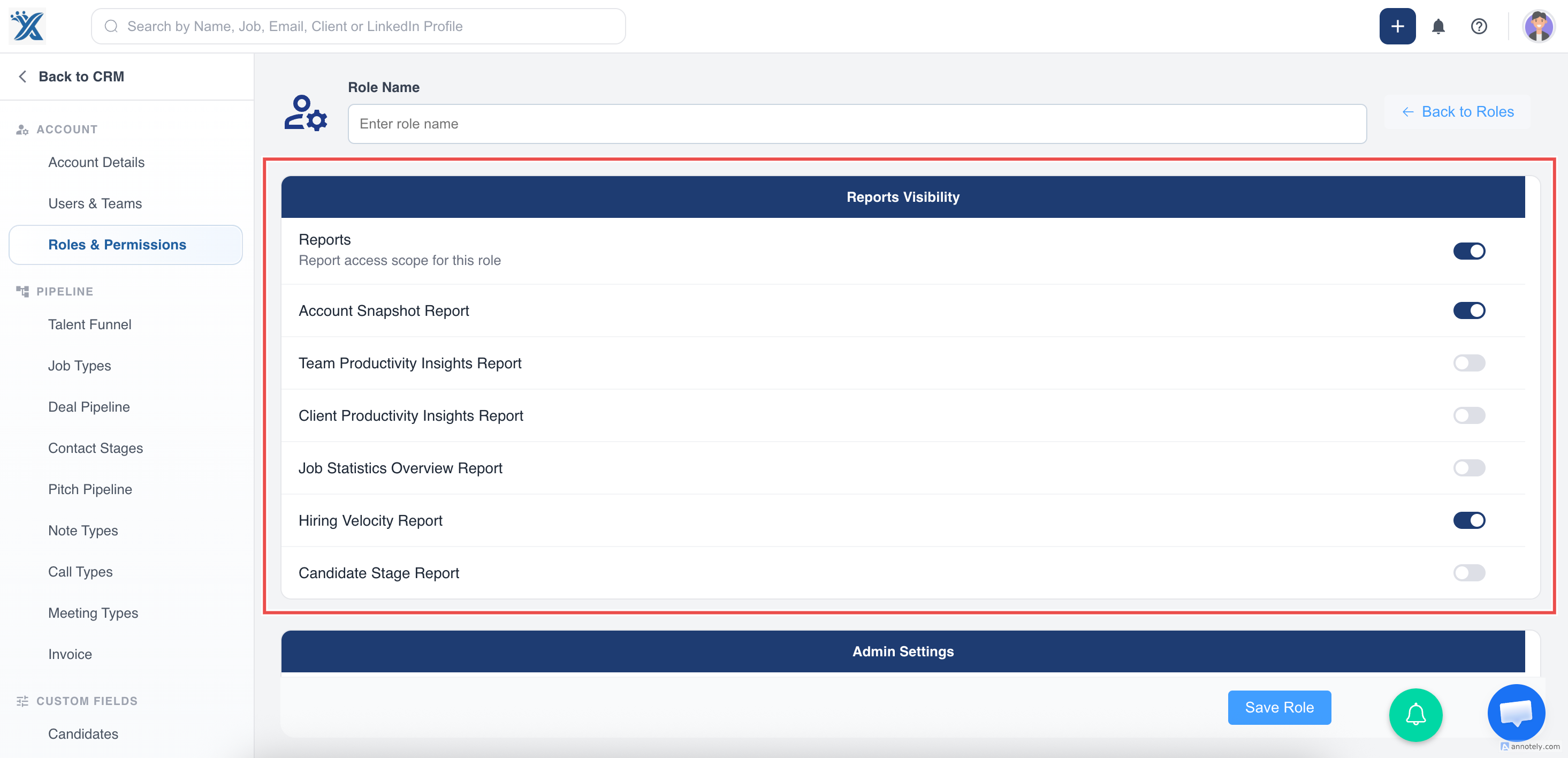
Report Access
Control whether users can access reports and which reporting areas they can view.
Review the dedicated permissions for Goals, Competitions, and AI Insights as well. Viewing a feature does not automatically grant management, report generation, or individual-performance access. A plan that includes a feature does not override the user’s role.
Goals, Competitions, and AI Insights are available on Free, Business, and Enterprise plans with appropriate permissions. Pro accounts see locked previews for these features, while retaining dashboard customization and expanded reports.
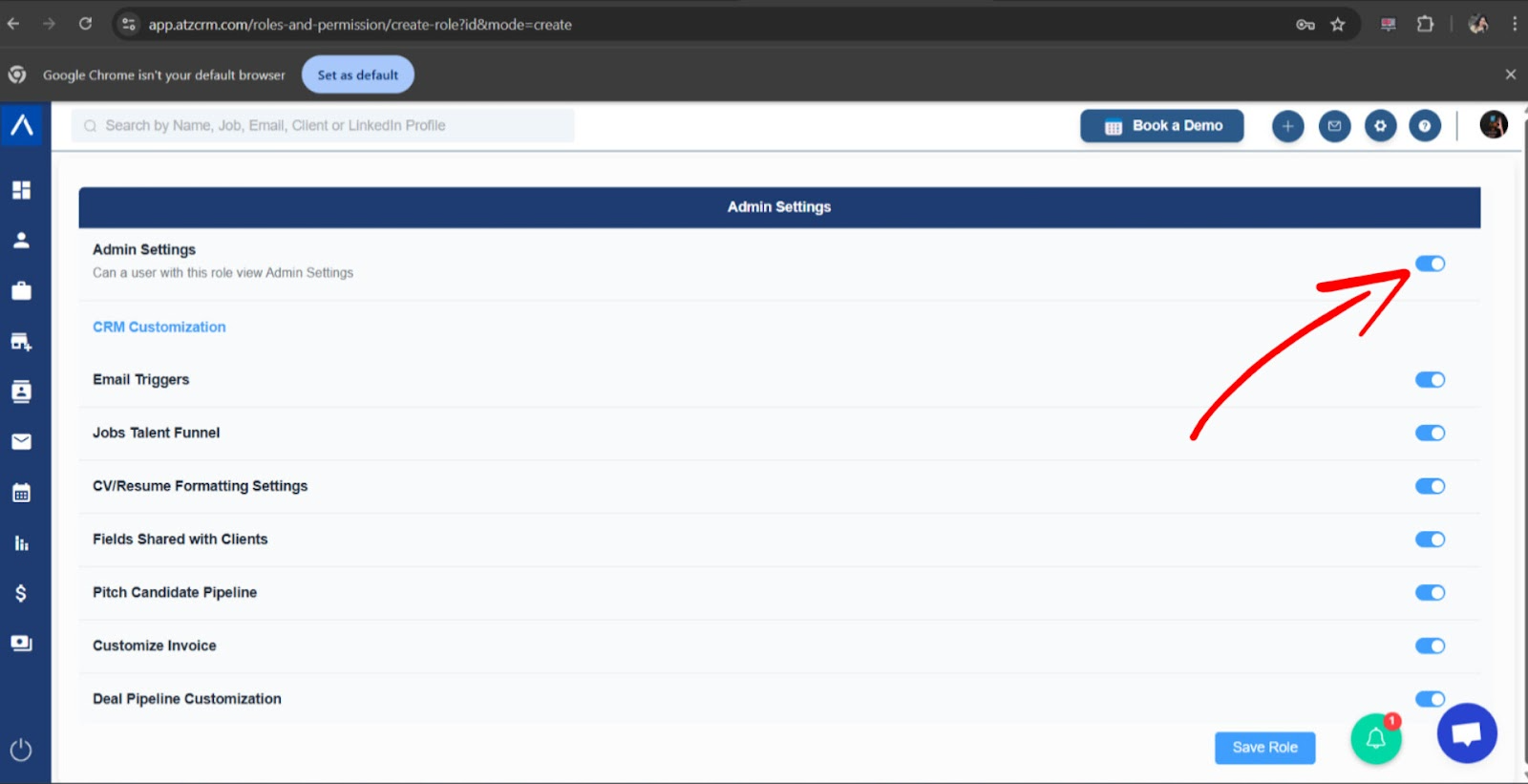
Admin Settings Access
Control whether a role can modify administrative settings.
Enable Customize Entities only for users who should be allowed to change the account-wide sidebar entity list. Admins have access by default. See Customize Sidebar Entities for the entities that can be hidden and the core entities that always remain visible.
Configure Bulk Actions
Bulk action permissions control what large-scale operations the role can perform.
Examples include:
- Export data access.
- Bulk delete permission.
- Bulk update access.
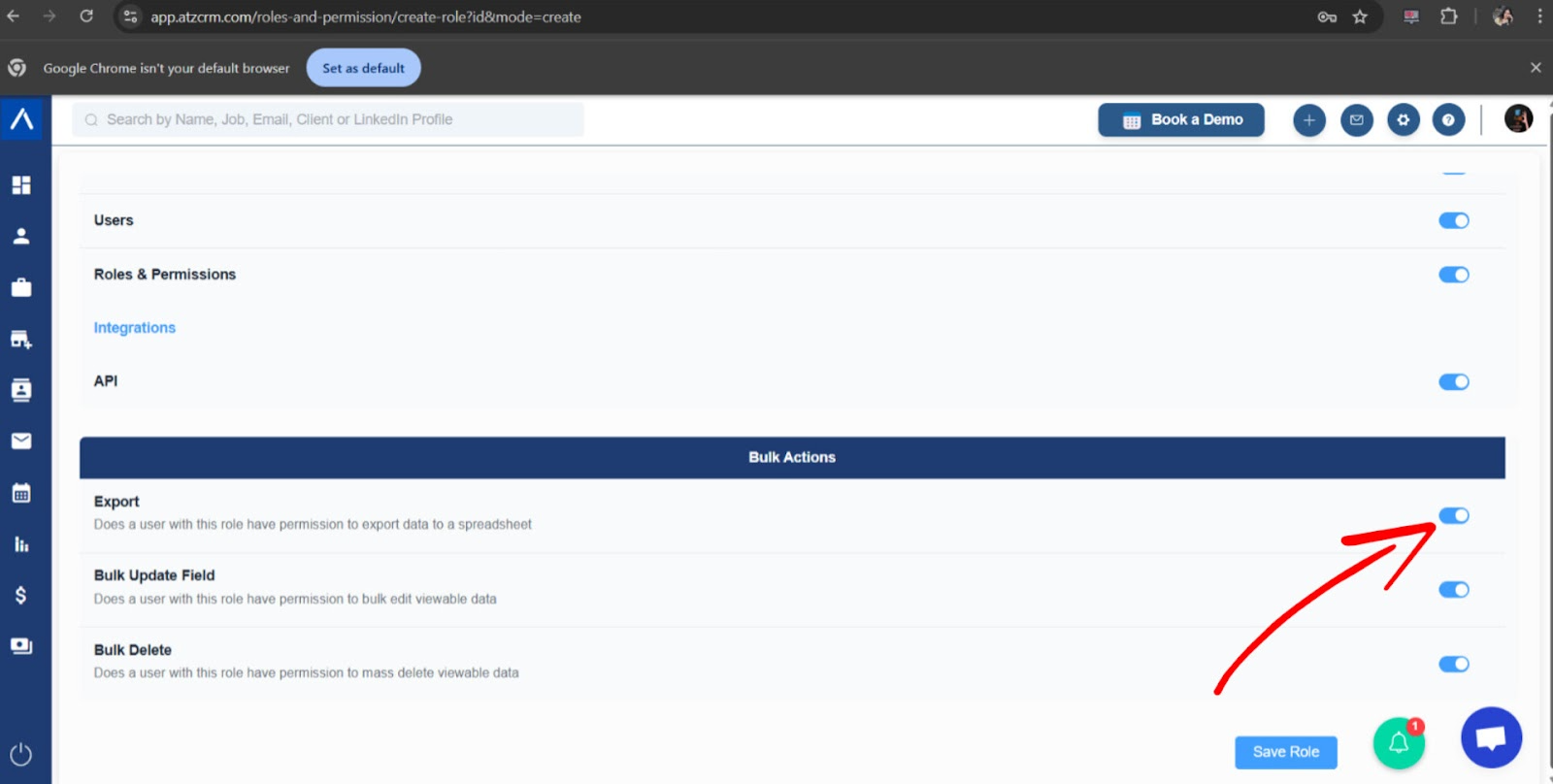
After configuring role permissions, click Save.
Assign Roles to Users
Open Users under Accounts and Users.
Select a user and assign the correct role.
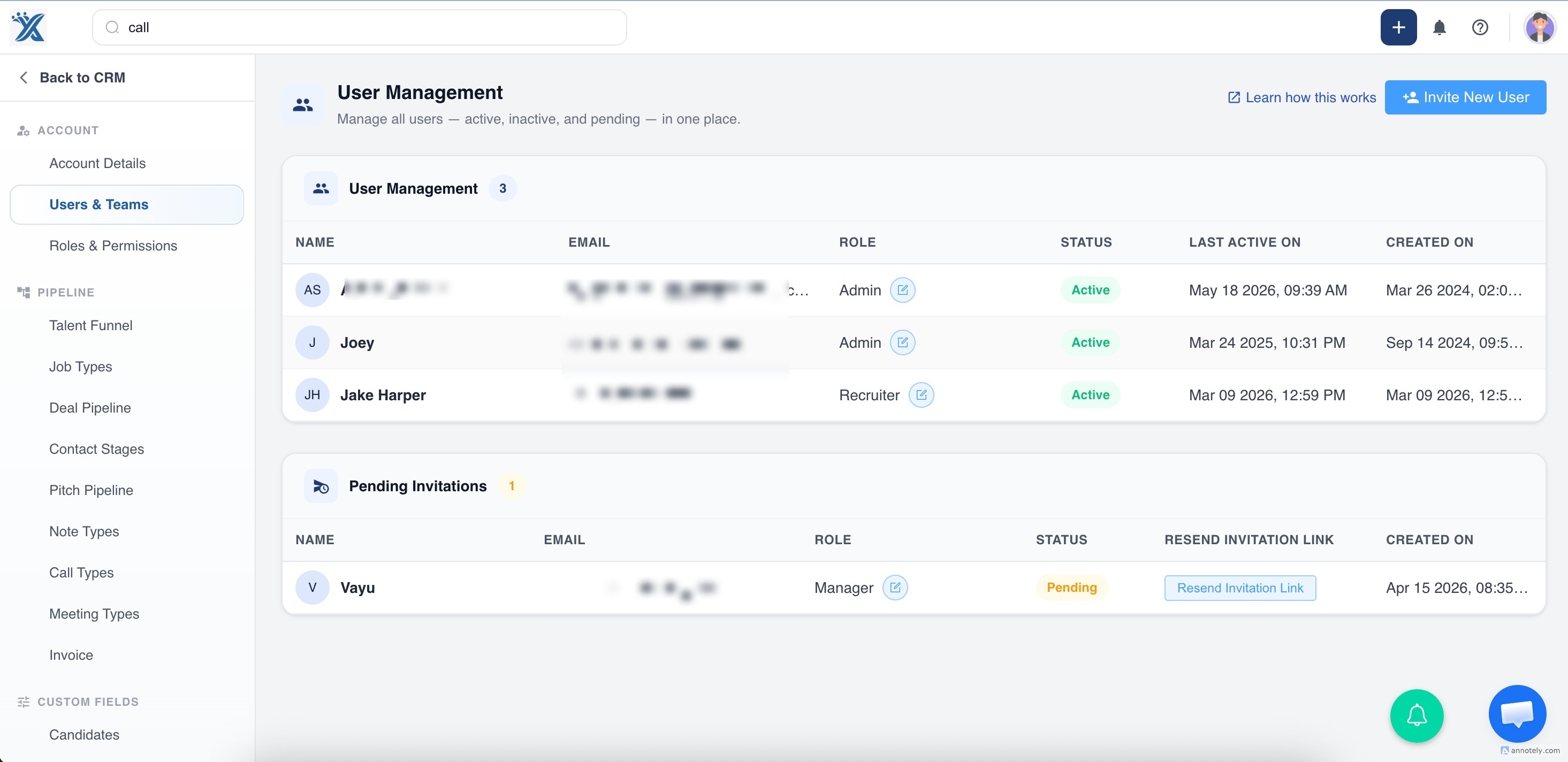
Custom roles appear alongside ATZ CRM default roles such as Manager, Consultant, and Recruiter. Default roles cannot be edited or deleted, but their permissions are visible for reference.
Use Cases
Recruiter Access
Give recruiters access to the candidate and job records they need without exposing unrelated admin settings.
Manager Oversight
Allow managers to view reports, team records, or ownership-related data while limiting destructive actions.
Admin Control
Reserve account settings, bulk delete, and sensitive configuration access for trusted admins.
Troubleshooting
A User Cannot See a Record
Check the specific view permission, the record’s owner or assignee, and active team memberships. Team membership cannot enable an action set to None, and a report filter cannot expand the user’s record access.
A User Cannot Export or Bulk Update
Review bulk action permissions and export permissions for the assigned role.
A Default Role Cannot Be Edited
Default roles are visible for reference but cannot be edited or deleted. Create a custom role if you need different permissions.
FAQs
Where are roles and permissions managed in ATZ CRM?
Open Roles and Permissions in Admin Settings. Assign a configured role from the Users section.
What do Everything, Team, Owned, and None mean?
For the selected action, Everything covers eligible account records, Team limits access through shared active teams, Owned follows the user’s ownership or assignment rule, and None disables the action.
Can default ATZ CRM roles be edited?
Default roles such as Manager, Consultant, and Recruiter are visible for reference but cannot be edited or deleted.
Can I test how a role affects user access?
Admins can review user views and permissions to confirm how a role affects user capabilities.
Can one user have multiple roles?
Use the assigned role model available in the Users section. If access needs are mixed, create a custom role that matches the user’s responsibilities.
Should bulk delete be restricted?
Yes. Bulk delete can affect many records at once, so it should be limited to users who truly need it.