
Executive Hiring Health gives managers a prioritized view of jobs that may need intervention. It combines current job and candidate signals with overdue follow-up activity.
Generate the Report
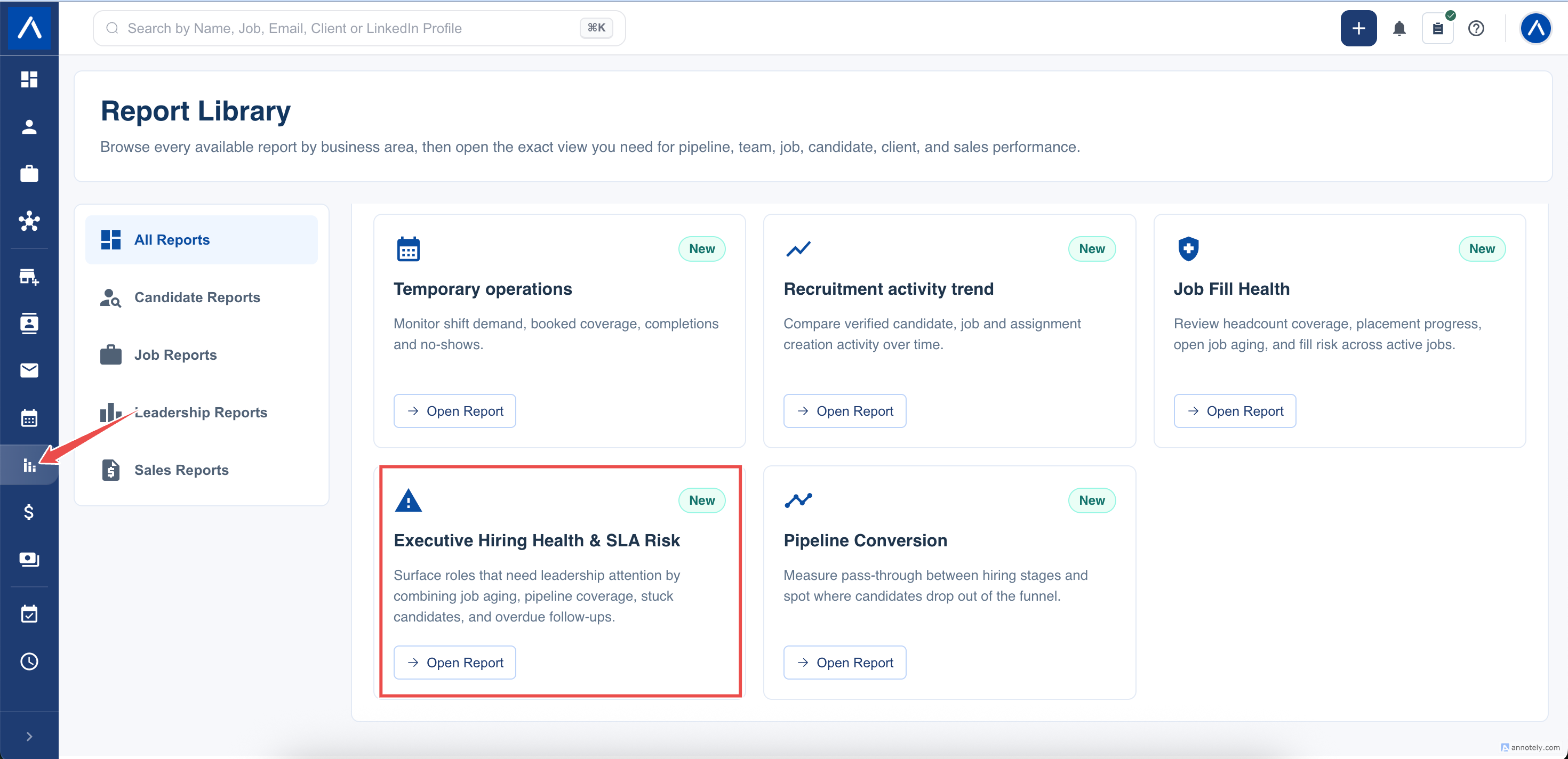
- Open Reports > Executive Hiring Health.
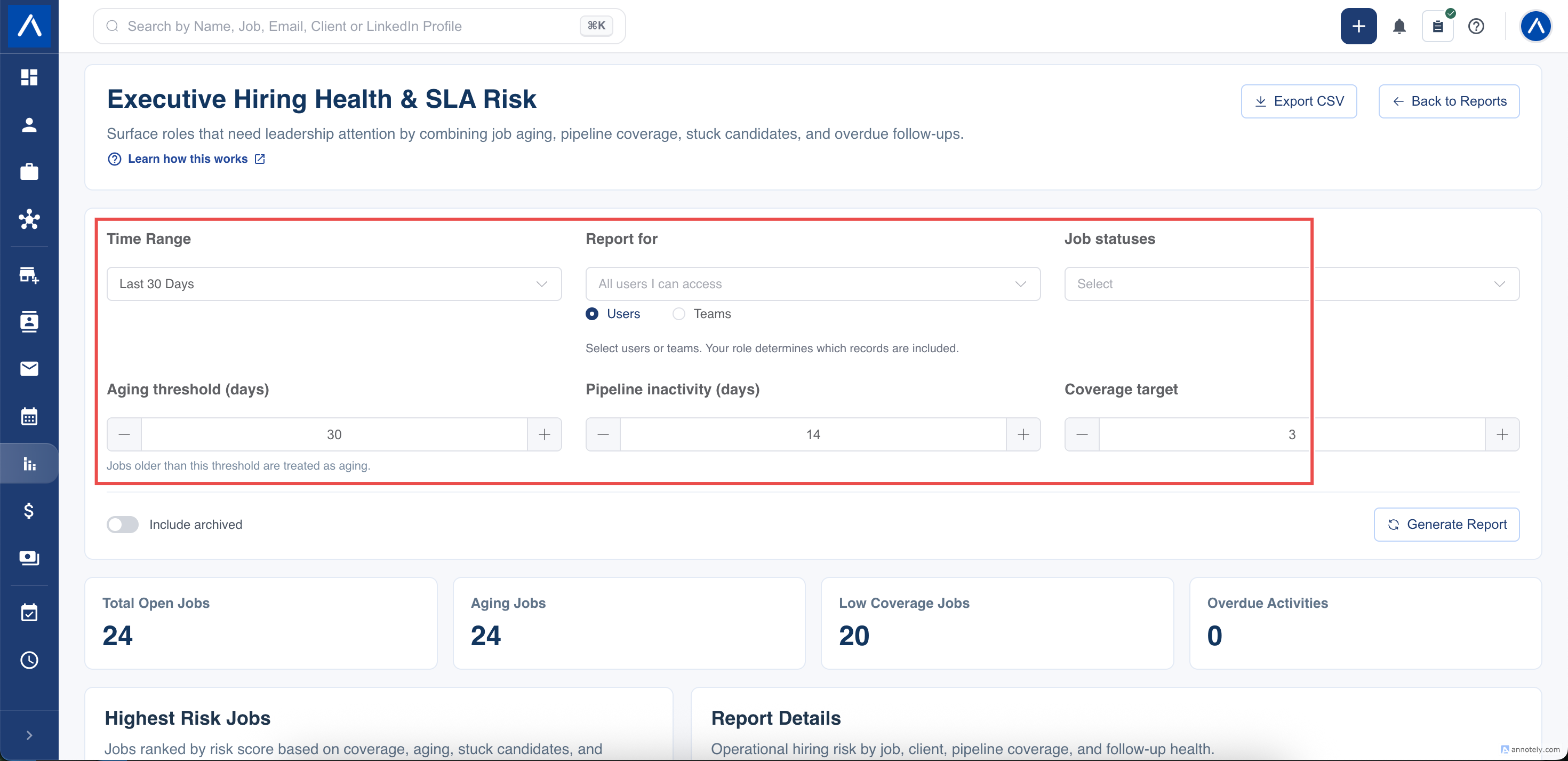
- Apply a recruiter or team filter if required.
- Select the job statuses you want to review. Select your Open statuses when you want a true open-job health view.
- Set the job aging threshold, candidate coverage target, and pipeline inactivity threshold.
- Choose whether archived jobs and candidates should be included.
- Choose the date range used for overdue activity records.
- Select Generate Report.
Understand What the Report Includes
The job list is a current snapshot of accessible, non-deleted jobs matching your selected statuses. If no status is selected, the report can include jobs across statuses; select the appropriate Open statuses when reviewing active hiring demand.
The selected date range does not choose jobs. It limits overdue activities by the date those activities were created.
Read the Risk Signals
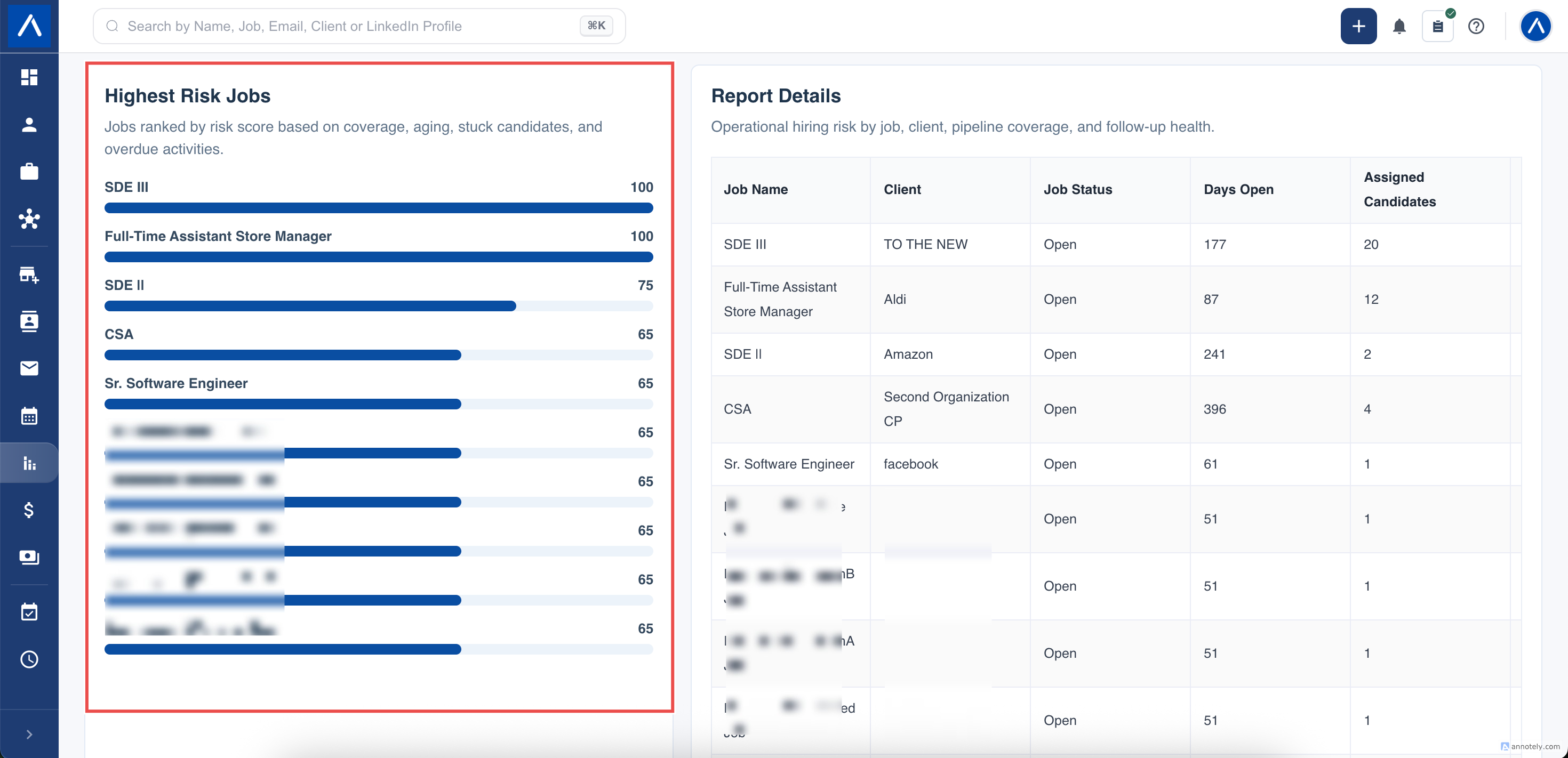
- Days open counts days since the job record was created.
- Assigned candidates counts distinct candidates currently assigned to the job.
- Stuck candidates counts assigned candidates whose job assignment has not been updated within your inactivity threshold.
- Overdue activities counts incomplete job-related activities with a start date before today that were created during the selected period.
- Low coverage jobs are jobs with fewer assigned candidates than your coverage target.
- Aging jobs have reached or passed your aging threshold.
Archived records are excluded by default. People and team filters respect your permitted current job and candidate scope.
Understand the Risk Score
ATZ CRM adds the following signals for each job:
- 30 points when assigned candidates are below the coverage target.
- 25 points when the job has reached the aging threshold.
- 10 points for each stuck candidate.
- 5 points for each included overdue activity.
The final score is capped at 100, and higher-risk jobs appear first. The score is a prioritization aid: it does not automatically mean the job or recruiter is underperforming.
Use the Report in a Hiring Review
Open the highest-risk rows first and check the underlying job. A high score might call for sourcing more candidates, progressing an inactive application, completing a client follow-up, or correcting an outdated activity.
Keep thresholds consistent when comparing reporting periods. Changing the aging, coverage, or inactivity values changes which risks are flagged and how the score is composed.
FAQs
How is the risk score calculated?
It combines low coverage, job age, stale candidate assignments, and overdue activities, with a maximum score of 100.
What is a stuck candidate?
An assigned candidate whose job assignment has not been updated within the selected inactivity threshold.
Does the date range select jobs?
No. It limits included overdue activities based on their creation date.